

Home
Click New Task to start from a clean home screen. Home greets you (“What should get done today?”) and offers task starters in four categories, Research, Spreadsheets, Analytics, and Automate, plus a personalized For You set once Doe knows your patterns. Each starter shows the connectors it needs, so one click either launches the task or opens the connection flow for anything missing. Home is also where your pinned work lives:- Pinned dashboards render as live cards you can reorder, open, or unpin. See Dashboards.
- Get started with Doe, an onboarding checklist for new accounts, tracks first steps like connecting an app, creating a Loop, uploading a file, and inviting a teammate. Right-click to dismiss it.
Ask Once, Doe Chooses the Work
You do not need to pick a mode before asking. Doe decides whether a request should be handled as a quick response or as deeper agent work.
For larger requests, Doe can plan, gather context, use subagents, validate outputs, and produce a complete result. See Agents.
Intelligence Modes
Where available for your workspace, the composer includes an intelligence mode selector:
Standard queries use flat credit pricing. Max and Fable are premium modes billed by actual usage, so long fan-out runs cost proportionally more. Loops keep the mode that was active when they were created.
Organize the Sidebar
The sidebar lists your sessions and folders, along with Search Sessions, the Library, Loops, and your user menu (connected tools, credits balance, theme toggle, and organization switcher).Add Context With @
Type @ to attach the exact context Doe should use.
Services you have not connected yet appear under Not Connected, and picking one opens the connection flow right from the mention menu.
Attach Files and Images
Drag files into chat, use the upload button, or paste images directly into the input. Attached files stay available to that conversation; Library files can be reused across conversations. Examples:Follow-Ups and Message Flow
Doe is designed for iterative work. After a response, it suggests useful next questions under Continue exploring, plus a personalized You often ask next list learned from your own history. The composer also completes your prompt inline as you type; pressTab to accept the suggestion or Esc to dismiss it.
While agent work is running, you can send another message in the same conversation. Queued messages show under the active task, where each one can interrupt now to redirect the current work or wait its turn, and can be removed before it runs.
Useful interaction patterns:
Message Actions
Every completed response has an action bar:
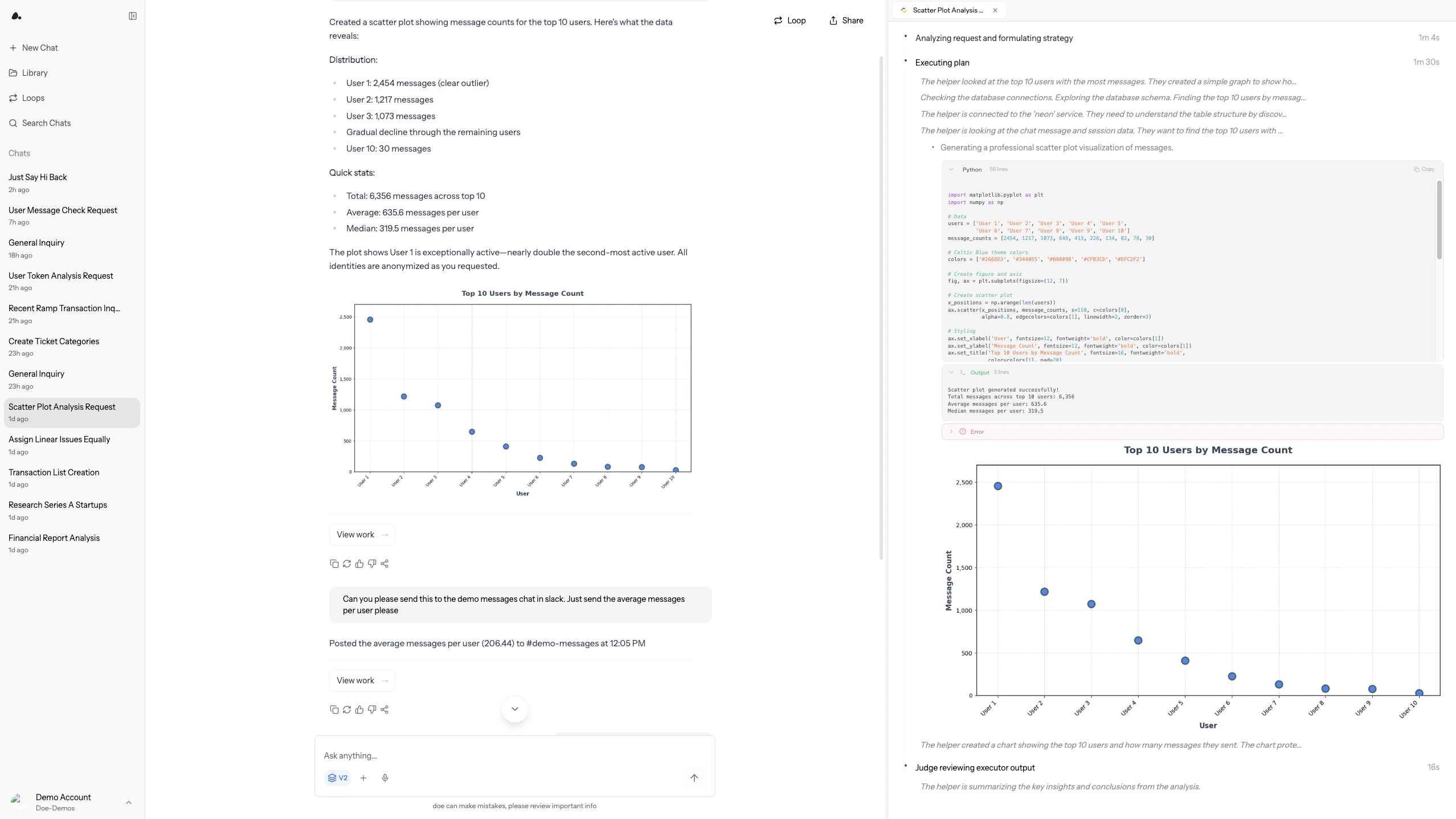
Responses can also include interactive content inline: charts (line, bar, pie, area, scatter) and data tables you can sort, filter, search, and download as CSV without leaving the chat.
Approvals
When work needs your sign-off, Doe pauses with an approval gate in the conversation, for confirming a plan before a large task, approving a specific tool action, or answering a clarifying question mid-run. Each gate offers auto-approve options scoped the way you want: just this once, for this tool in this session, or always. Email and calendar drafts render as editable cards, so you can adjust recipients, subject, body, or event details before clicking Send or Create yourself. Manage standing approvals in Settings -> Actions, including Auto Mode for running plans and write tools without prompts. See Settings.Preview Pane
The preview pane displays work in tabs:
Open or close the pane with
Cmd + I / Ctrl + I. Pop out the active preview tab with Cmd + Shift + P / Ctrl + Shift + P to open it in its own browser window, and pop it back in when you are done.
The chat top bar keeps the session’s output one click away: a Files button jumps to the session’s files and shows a dot when new files have landed, and a Share button snapshots the conversation for sharing.
You can keep several preview tabs open at once, drag tabs to reorder them, and switch between generated files and sources without losing the artifact you were reviewing. When the last tab closes, the pane closes with it.
Agent Activity
Substantive agent work automatically opens activity when it starts. Use it to see what Doe is doing and to inspect supporting evidence.Steering Work
You can redirect agent work while it is running by sending another message in the same chat. Useful steering messages:Focus only on enterprise accounts.Use the file I just uploaded as the template.Do not send anything externally. Draft it only.Add a spreadsheet version of the table.Verify the numbers before finalizing.
Sharing
When sharing a session, choose whether to include files. You can also share a specific response, file, or folder when the reviewer does not need the full conversation. Files and generated artifacts can be opened, downloaded, saved to the Library, or shared from the preview pane and Library, depending on permissions. See Sharing and Collaboration.Working with Files
Upload, search, analyze, and edit documents
Spreadsheets
Work with spreadsheet previews, formulas, and sync
Sharing
Share conversations, responses, files, and folders
Loops
Run recurring tasks on a cadence