> ## Documentation Index
> Fetch the complete documentation index at: https://docs.doe.so/llms.txt
> Use this file to discover all available pages before exploring further.
# Quickstart
> Delegate your first task and get a finished artifact back
## What You Need
* A [Doe account](https://dashboard.doe.so/signup)
**Already have an account?** Skip to [Step 1](#step-1-open-your-workspace).
***
## Step 1: Open Your Workspace
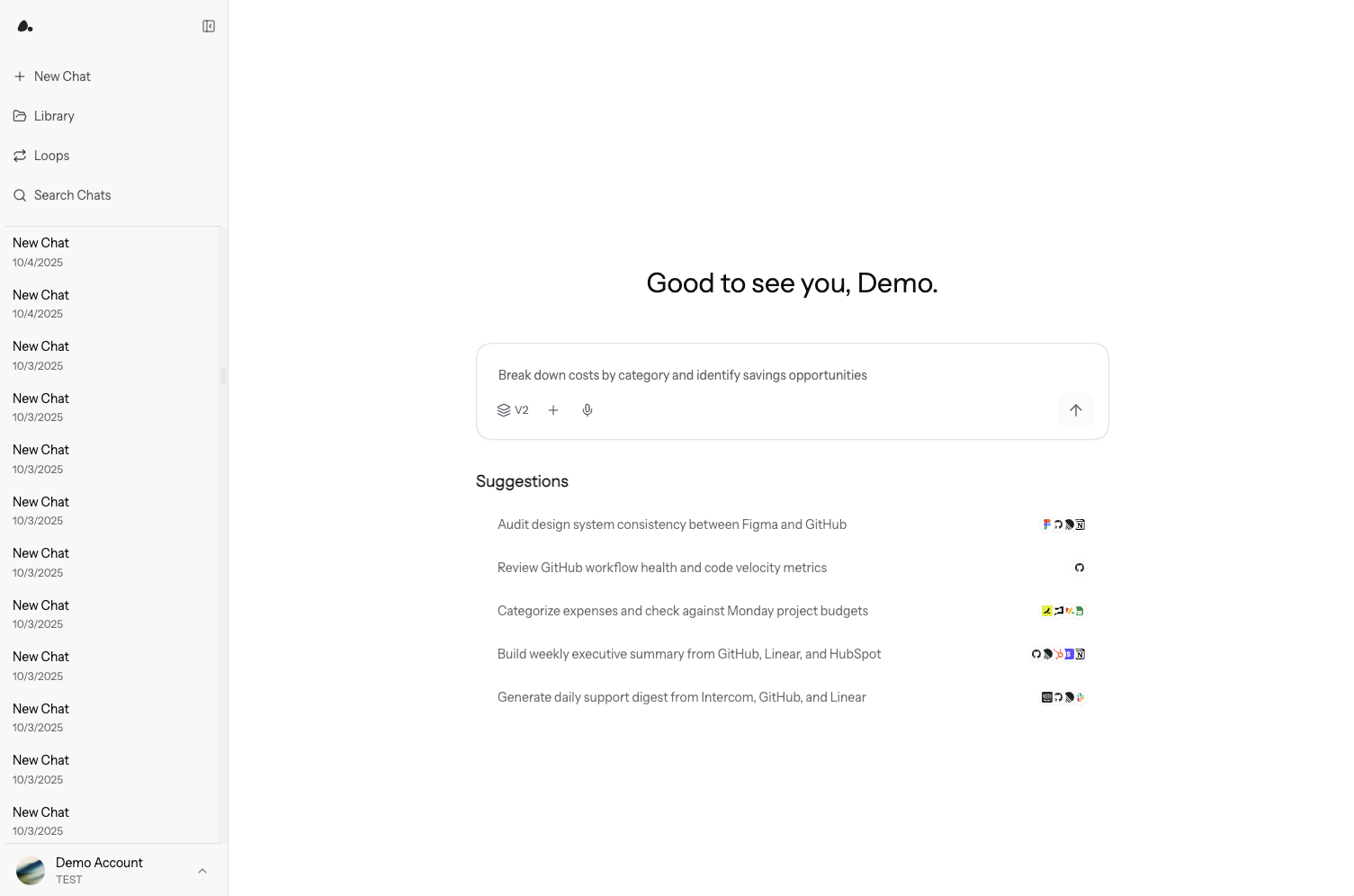
Go to [doe.so](https://doe.so) or [dashboard.doe.so](https://dashboard.doe.so) and sign in. If teammates on your email domain already use Doe, you can request to join their workspace; otherwise create a new one.
A short setup flow asks about your role and tools, helps you make your first connections, and seeds starter prompts. The home screen keeps a **Get started with Doe** checklist until you have covered the basics.
***
## Step 2: Connect Your First Work Surface
Go to **Settings** -> **Connections** and connect a service Doe should use, such as Gmail, Slack, HubSpot, Google Drive, Google Sheets, or a database.
***
## Step 3: Add Context
Upload a file in chat or add reusable files to the Library. Doe supports documents, spreadsheets, CSVs, JSON, text, Markdown, images, and ZIP uploads of supported files.
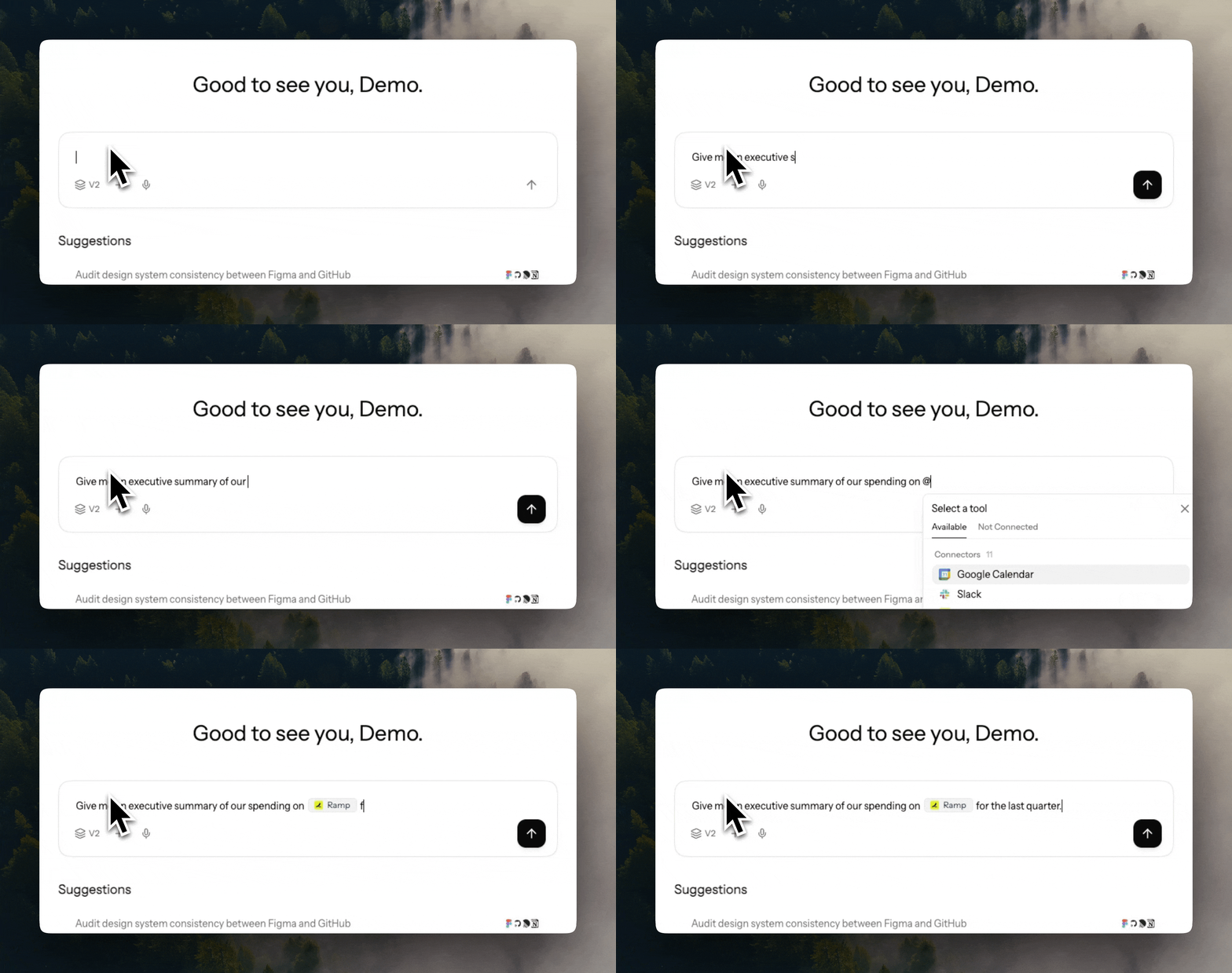
Use `@` to mention a file, folder, Google file, previous session, or connected integration.
***
## Step 4: Delegate Your First Task
Start with a concrete outcome. Include the source, output format, constraints, and approval rules.
```text theme={null}
Search @Gmail and @HubSpot for Acme updates from the last 14 days.
Summarize what changed, list open risks, and draft a follow-up email.
Do not send until I approve.
```
Doe decides whether your request needs a quick answer or deeper agent work. For larger outcomes, name the sources, output, constraints, and approval rules.
## Step 5: Review, Share, or Turn It Into a Loop
Open the preview pane with `Cmd + I` or `Ctrl + I`. You can inspect agent activity, files, spreadsheets, sources, generated charts, and Loop configuration without leaving the chat.
From there, you can download a generated file, save it to the Library, share a response or conversation, or turn recurring work into a Loop.
## What's Next
Choose the first real task to delegate
Learn how delegation, subagents, and activity tracking work
Upload, search, analyze, and fill documents
Share conversations, files, folders, and specific responses
Create, edit, style, validate, and sync spreadsheets
Connect apps where Doe can search and act
Schedule recurring agent work
***
**Need help?** [support@doe.so](mailto:support@doe.so)
 ***
## Step 2: Connect Your First Work Surface
Go to **Settings** -> **Connections** and connect a service Doe should use, such as Gmail, Slack, HubSpot, Google Drive, Google Sheets, or a database.
***
## Step 3: Add Context
Upload a file in chat or add reusable files to the Library. Doe supports documents, spreadsheets, CSVs, JSON, text, Markdown, images, and ZIP uploads of supported files.
Use `@` to mention a file, folder, Google file, previous session, or connected integration.
***
## Step 2: Connect Your First Work Surface
Go to **Settings** -> **Connections** and connect a service Doe should use, such as Gmail, Slack, HubSpot, Google Drive, Google Sheets, or a database.
***
## Step 3: Add Context
Upload a file in chat or add reusable files to the Library. Doe supports documents, spreadsheets, CSVs, JSON, text, Markdown, images, and ZIP uploads of supported files.
Use `@` to mention a file, folder, Google file, previous session, or connected integration.
 ***
## Step 4: Delegate Your First Task
Start with a concrete outcome. Include the source, output format, constraints, and approval rules.
```text theme={null}
Search @Gmail and @HubSpot for Acme updates from the last 14 days.
Summarize what changed, list open risks, and draft a follow-up email.
Do not send until I approve.
```
Doe decides whether your request needs a quick answer or deeper agent work. For larger outcomes, name the sources, output, constraints, and approval rules.
## Step 5: Review, Share, or Turn It Into a Loop
Open the preview pane with `Cmd + I` or `Ctrl + I`. You can inspect agent activity, files, spreadsheets, sources, generated charts, and Loop configuration without leaving the chat.
From there, you can download a generated file, save it to the Library, share a response or conversation, or turn recurring work into a Loop.
## What's Next
***
## Step 4: Delegate Your First Task
Start with a concrete outcome. Include the source, output format, constraints, and approval rules.
```text theme={null}
Search @Gmail and @HubSpot for Acme updates from the last 14 days.
Summarize what changed, list open risks, and draft a follow-up email.
Do not send until I approve.
```
Doe decides whether your request needs a quick answer or deeper agent work. For larger outcomes, name the sources, output, constraints, and approval rules.
## Step 5: Review, Share, or Turn It Into a Loop
Open the preview pane with `Cmd + I` or `Ctrl + I`. You can inspect agent activity, files, spreadsheets, sources, generated charts, and Loop configuration without leaving the chat.
From there, you can download a generated file, save it to the Library, share a response or conversation, or turn recurring work into a Loop.
## What's Next