> ## Documentation Index
> Fetch the complete documentation index at: https://docs.doe.so/llms.txt
> Use this file to discover all available pages before exploring further.
# Chat and Preview Pane
> Work with agents, files, activity, and artifacts side by side
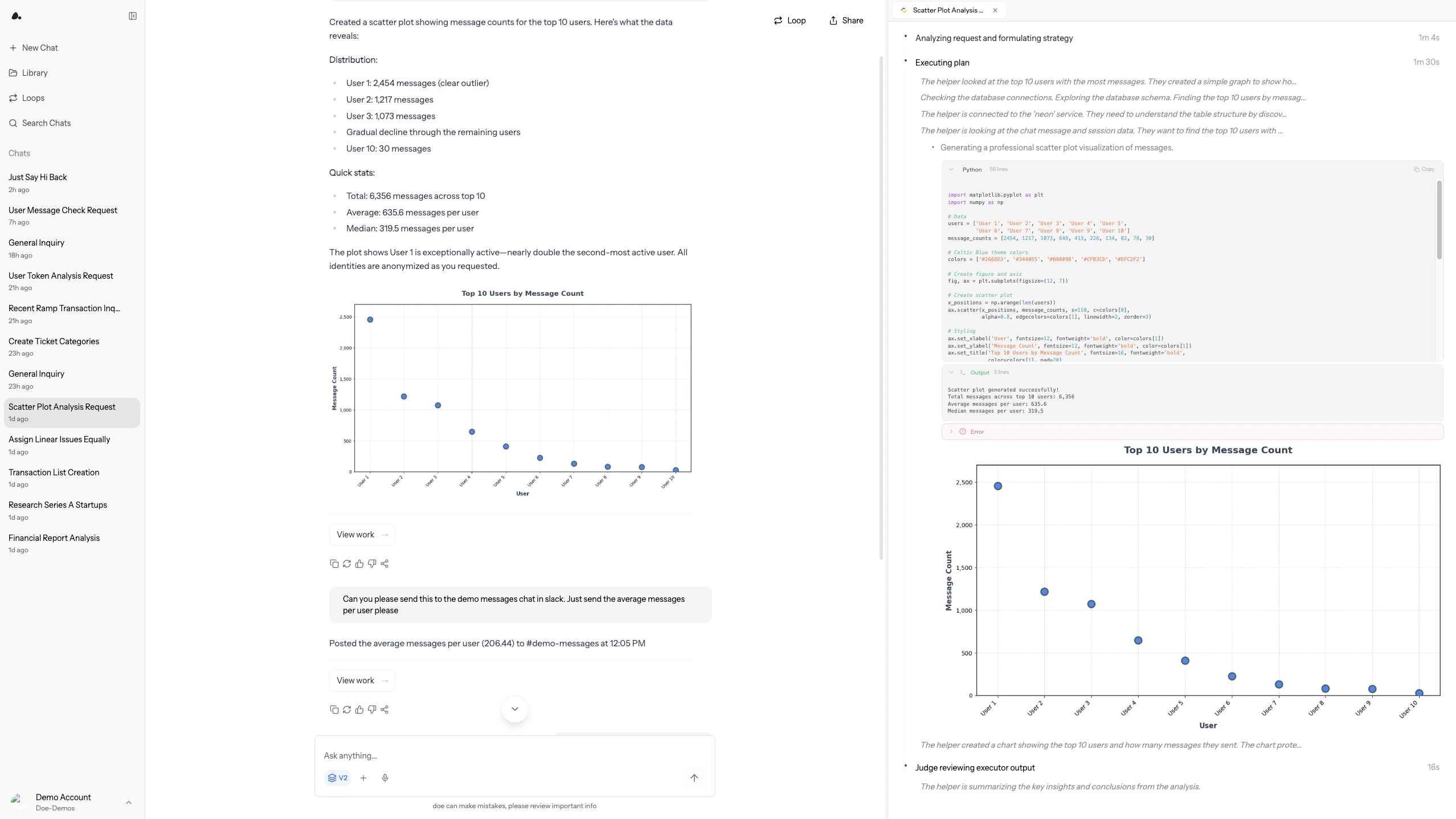
Chat is the control surface for Doe. The preview pane is where the work opens: files, spreadsheets, charts, dashboards, sandbox outputs, sources, agent activity, and Loops stay beside the conversation.
## Home
Click **New Task** to start from a clean home screen. Home greets you ("What should get done today?") and offers task starters in four categories, **Research**, **Spreadsheets**, **Analytics**, and **Automate**, plus a personalized **For You** set once Doe knows your patterns. Each starter shows the connectors it needs, so one click either launches the task or opens the connection flow for anything missing.
Home is also where your pinned work lives:
* **Pinned dashboards** render as live cards you can reorder, open, or unpin. See [Dashboards](/essentials/dashboards).
* **Get started with Doe**, an onboarding checklist for new accounts, tracks first steps like connecting an app, creating a Loop, uploading a file, and inviting a teammate. Right-click to dismiss it.
***
## Ask Once, Doe Chooses the Work
You do not need to pick a mode before asking. Doe decides whether a request should be handled as a quick response or as deeper agent work.
| Request | What Doe may do |
| --------------------- | ---------------------------------------------------------- |
| Quick answer | Respond directly in the conversation |
| Drafting or rewriting | Produce copy you can refine with follow-ups |
| File question | Read the relevant file and cite useful sections |
| Multi-step work | Search, analyze, use apps, create files, and show activity |
| Recurring task | Help create a Loop when the prompt includes a cadence |
For larger requests, Doe can plan, gather context, use subagents, validate outputs, and produce a complete result. See [Agents](/concepts/agents).
## Intelligence Modes
Where available for your workspace, the composer includes an intelligence mode selector:
| Mode | Best for |
| ------------ | ------------------------------------------------------------------------------------------------------------------------------ |
| **Standard** | Fast and efficient for everyday tasks |
| **Max** | Maximum intelligence for complex work: larger context, deeper reasoning, and bigger subagent fleets. Slower and more expensive |
| **Fable** | The most expressive mode for creative work |
Standard queries use flat credit pricing. Max and Fable are premium modes billed by actual usage, so long fan-out runs cost proportionally more. Loops keep the mode that was active when they were created.
## Organize the Sidebar
The sidebar lists your sessions and folders, along with **Search Sessions**, the Library, Loops, and your user menu (connected tools, credits balance, theme toggle, and organization switcher).
| Capability | What it does |
| ---------------------- | ----------------------------------------------------------------------------------------------------------------- |
| Folders and subfolders | Group related sessions; drag to reorder folders and move sessions between them |
| Right-click menus | Rename, duplicate, move to a folder, or delete a session; rename, add a subfolder to, reorder, or delete a folder |
| Sort | Order unfiled sessions by created time or last updated |
| Source filters | Show or hide sessions started from Web, Slack, Email, Phone, or Loops |
## Add Context With `@`
Type `@` to attach the exact context Doe should use.
| Context | Examples |
| -------------------- | ------------------------------------------------------------------------------- |
| Tools | Gmail, Slack, HubSpot, Salesforce, GitHub, Linear, Notion, and other connectors |
| Skills | Focused capabilities such as research, file analysis, and data analysis |
| Files | PDFs, DOCX files, spreadsheets, CSVs, images, JSON, Markdown |
| Google Files | Drive files, Sheets, Docs |
| Folders and Sessions | Prior chats, grouped work, reusable context |
| Dashboards | Reference an existing dashboard as context |
Services you have not connected yet appear under **Not Connected**, and picking one opens the connection flow right from the mention menu.
## Attach Files and Images
Drag files into chat, use the upload button, or paste images directly into the input. Attached files stay available to that conversation; Library files can be reused across conversations.
Examples:
```text theme={null}
@board-pack.pdf Extract the top risks and cite the page for each one.
```
```text theme={null}
@pipeline.xlsx Clean this spreadsheet, add formulas, and make the summary sheet presentation-ready.
```
```text theme={null}
Use this screenshot to identify the UI issue and draft a bug report.
```
## Follow-Ups and Message Flow
Doe is designed for iterative work. After a response, it suggests useful next questions under **Continue exploring**, plus a personalized **You often ask next** list learned from your own history. The composer also completes your prompt inline as you type; press `Tab` to accept the suggestion or `Esc` to dismiss it.
While agent work is running, you can send another message in the same conversation. Queued messages show under the active task, where each one can **interrupt now** to redirect the current work or wait its turn, and can be removed before it runs.
Useful interaction patterns:
| Pattern | Use it for |
| -------------------- | ---------------------------------------------------------------------------------------- |
| Suggested follow-ups | Continue a research thread without rewriting context |
| Queued messages | Add the next instruction while agent work is still running, or interrupt to apply it now |
| Selected-text reply | Highlight part of an answer and respond to that exact excerpt |
| Voice input | Dictate a prompt with live transcription instead of typing |
| Generated file list | Open, download, or locate files created during the run |
## Message Actions
Every completed response has an action bar:
| Action | What it does |
| ------------------ | ------------------------------------------------------------------------------------------------------ |
| **Copy** | Copy the response |
| **Try again** | Regenerate the response |
| **Share** | Create a shareable link to just that message |
| **Fork from here** | Branch a new session from that point; the fork shows a divider linking back to the source conversation |
Responses can also include interactive content inline: charts (line, bar, pie, area, scatter) and data tables you can sort, filter, search, and download as CSV without leaving the chat.
## Approvals
When work needs your sign-off, Doe pauses with an approval gate in the conversation, for confirming a plan before a large task, approving a specific tool action, or answering a clarifying question mid-run.
Each gate offers auto-approve options scoped the way you want: just this once, for this tool in this session, or always. Email and calendar drafts render as editable cards, so you can adjust recipients, subject, body, or event details before clicking **Send** or **Create** yourself.
Manage standing approvals in **Settings -> Actions**, including Auto Mode for running plans and write tools without prompts. See [Settings](/essentials/settings#actions).
## Preview Pane
The preview pane displays work in tabs:
| Tab type | What it shows |
| -------------- | ------------------------------------------------------------------------------------ |
| Files | PDFs, documents, images, generated files, and downloads |
| Spreadsheets | Editable workbook previews, formulas, formatting, charts, exports, and sync controls |
| Documents | Editable Word documents and Markdown files |
| Dashboards | Interactive dashboards with live components and refresh controls |
| Activity | Agent plans, app actions, subagent work, analysis, evidence, sources, and progress |
| Visualizations | Charts and images generated during analysis |
| Loops | Prompt, cadence, status, run history, and actions for scheduled work |
Open or close the pane with `Cmd + I` / `Ctrl + I`. Pop out the active preview tab with `Cmd + Shift + P` / `Ctrl + Shift + P` to open it in its own browser window, and pop it back in when you are done.
The chat top bar keeps the session's output one click away: a **Files** button jumps to the session's files and shows a dot when new files have landed, and a **Share** button snapshots the conversation for sharing.
You can keep several preview tabs open at once, drag tabs to reorder them, and switch between generated files and sources without losing the artifact you were reviewing. When the last tab closes, the pane closes with it.
***
## Agent Activity
Substantive agent work automatically opens activity when it starts. Use it to see what Doe is doing and to inspect supporting evidence.
| Activity | What to inspect |
| -------------------- | ---------------------------------------------------------------------------- |
| App and file actions | Which connected apps, files, websites, or sandboxes were used |
| Sources | URLs, files, pages, passages, or records used to support an answer |
| Analysis | Calculations, checks, generated charts, and saved artifacts |
| Spreadsheet edits | Sheet creation, reads, writes, formulas, formatting, validation, and exports |
| Subagents | Specialized agents assigned to focused pieces of the work |
If a result looks surprising, open the relevant source, file, sandbox output, or spreadsheet tab and verify the underlying evidence before acting on it.
## Steering Work
You can redirect agent work while it is running by sending another message in the same chat.
Useful steering messages:
* `Focus only on enterprise accounts.`
* `Use the file I just uploaded as the template.`
* `Do not send anything externally. Draft it only.`
* `Add a spreadsheet version of the table.`
* `Verify the numbers before finalizing.`
## Sharing
When sharing a session, choose whether to include files. You can also share a specific response, file, or folder when the reviewer does not need the full conversation.
Files and generated artifacts can be opened, downloaded, saved to the Library, or shared from the preview pane and Library, depending on permissions. See [Sharing and Collaboration](/essentials/sharing).
***
***
Upload, search, analyze, and edit documents
Work with spreadsheet previews, formulas, and sync
Share conversations, responses, files, and folders
Run recurring tasks on a cadence
 ***
## Ask Once, Doe Chooses the Work
You do not need to pick a mode before asking. Doe decides whether a request should be handled as a quick response or as deeper agent work.
| Request | What Doe may do |
| --------------------- | ---------------------------------------------------------- |
| Quick answer | Respond directly in the conversation |
| Drafting or rewriting | Produce copy you can refine with follow-ups |
| File question | Read the relevant file and cite useful sections |
| Multi-step work | Search, analyze, use apps, create files, and show activity |
| Recurring task | Help create a Loop when the prompt includes a cadence |
For larger requests, Doe can plan, gather context, use subagents, validate outputs, and produce a complete result. See [Agents](/concepts/agents).
## Intelligence Modes
Where available for your workspace, the composer includes an intelligence mode selector:
| Mode | Best for |
| ------------ | ------------------------------------------------------------------------------------------------------------------------------ |
| **Standard** | Fast and efficient for everyday tasks |
| **Max** | Maximum intelligence for complex work: larger context, deeper reasoning, and bigger subagent fleets. Slower and more expensive |
| **Fable** | The most expressive mode for creative work |
Standard queries use flat credit pricing. Max and Fable are premium modes billed by actual usage, so long fan-out runs cost proportionally more. Loops keep the mode that was active when they were created.
## Organize the Sidebar
The sidebar lists your sessions and folders, along with **Search Sessions**, the Library, Loops, and your user menu (connected tools, credits balance, theme toggle, and organization switcher).
| Capability | What it does |
| ---------------------- | ----------------------------------------------------------------------------------------------------------------- |
| Folders and subfolders | Group related sessions; drag to reorder folders and move sessions between them |
| Right-click menus | Rename, duplicate, move to a folder, or delete a session; rename, add a subfolder to, reorder, or delete a folder |
| Sort | Order unfiled sessions by created time or last updated |
| Source filters | Show or hide sessions started from Web, Slack, Email, Phone, or Loops |
## Add Context With `@`
Type `@` to attach the exact context Doe should use.
| Context | Examples |
| -------------------- | ------------------------------------------------------------------------------- |
| Tools | Gmail, Slack, HubSpot, Salesforce, GitHub, Linear, Notion, and other connectors |
| Skills | Focused capabilities such as research, file analysis, and data analysis |
| Files | PDFs, DOCX files, spreadsheets, CSVs, images, JSON, Markdown |
| Google Files | Drive files, Sheets, Docs |
| Folders and Sessions | Prior chats, grouped work, reusable context |
| Dashboards | Reference an existing dashboard as context |
Services you have not connected yet appear under **Not Connected**, and picking one opens the connection flow right from the mention menu.
## Attach Files and Images
Drag files into chat, use the upload button, or paste images directly into the input. Attached files stay available to that conversation; Library files can be reused across conversations.
Examples:
```text theme={null}
@board-pack.pdf Extract the top risks and cite the page for each one.
```
```text theme={null}
@pipeline.xlsx Clean this spreadsheet, add formulas, and make the summary sheet presentation-ready.
```
```text theme={null}
Use this screenshot to identify the UI issue and draft a bug report.
```
## Follow-Ups and Message Flow
Doe is designed for iterative work. After a response, it suggests useful next questions under **Continue exploring**, plus a personalized **You often ask next** list learned from your own history. The composer also completes your prompt inline as you type; press `Tab` to accept the suggestion or `Esc` to dismiss it.
While agent work is running, you can send another message in the same conversation. Queued messages show under the active task, where each one can **interrupt now** to redirect the current work or wait its turn, and can be removed before it runs.
Useful interaction patterns:
| Pattern | Use it for |
| -------------------- | ---------------------------------------------------------------------------------------- |
| Suggested follow-ups | Continue a research thread without rewriting context |
| Queued messages | Add the next instruction while agent work is still running, or interrupt to apply it now |
| Selected-text reply | Highlight part of an answer and respond to that exact excerpt |
| Voice input | Dictate a prompt with live transcription instead of typing |
| Generated file list | Open, download, or locate files created during the run |
## Message Actions
Every completed response has an action bar:
| Action | What it does |
| ------------------ | ------------------------------------------------------------------------------------------------------ |
| **Copy** | Copy the response |
| **Try again** | Regenerate the response |
| **Share** | Create a shareable link to just that message |
| **Fork from here** | Branch a new session from that point; the fork shows a divider linking back to the source conversation |
Responses can also include interactive content inline: charts (line, bar, pie, area, scatter) and data tables you can sort, filter, search, and download as CSV without leaving the chat.
## Approvals
When work needs your sign-off, Doe pauses with an approval gate in the conversation, for confirming a plan before a large task, approving a specific tool action, or answering a clarifying question mid-run.
Each gate offers auto-approve options scoped the way you want: just this once, for this tool in this session, or always. Email and calendar drafts render as editable cards, so you can adjust recipients, subject, body, or event details before clicking **Send** or **Create** yourself.
Manage standing approvals in **Settings -> Actions**, including Auto Mode for running plans and write tools without prompts. See [Settings](/essentials/settings#actions).
## Preview Pane
The preview pane displays work in tabs:
| Tab type | What it shows |
| -------------- | ------------------------------------------------------------------------------------ |
| Files | PDFs, documents, images, generated files, and downloads |
| Spreadsheets | Editable workbook previews, formulas, formatting, charts, exports, and sync controls |
| Documents | Editable Word documents and Markdown files |
| Dashboards | Interactive dashboards with live components and refresh controls |
| Activity | Agent plans, app actions, subagent work, analysis, evidence, sources, and progress |
| Visualizations | Charts and images generated during analysis |
| Loops | Prompt, cadence, status, run history, and actions for scheduled work |
Open or close the pane with `Cmd + I` / `Ctrl + I`. Pop out the active preview tab with `Cmd + Shift + P` / `Ctrl + Shift + P` to open it in its own browser window, and pop it back in when you are done.
The chat top bar keeps the session's output one click away: a **Files** button jumps to the session's files and shows a dot when new files have landed, and a **Share** button snapshots the conversation for sharing.
You can keep several preview tabs open at once, drag tabs to reorder them, and switch between generated files and sources without losing the artifact you were reviewing. When the last tab closes, the pane closes with it.
***
## Agent Activity
Substantive agent work automatically opens activity when it starts. Use it to see what Doe is doing and to inspect supporting evidence.
| Activity | What to inspect |
| -------------------- | ---------------------------------------------------------------------------- |
| App and file actions | Which connected apps, files, websites, or sandboxes were used |
| Sources | URLs, files, pages, passages, or records used to support an answer |
| Analysis | Calculations, checks, generated charts, and saved artifacts |
| Spreadsheet edits | Sheet creation, reads, writes, formulas, formatting, validation, and exports |
| Subagents | Specialized agents assigned to focused pieces of the work |
***
## Ask Once, Doe Chooses the Work
You do not need to pick a mode before asking. Doe decides whether a request should be handled as a quick response or as deeper agent work.
| Request | What Doe may do |
| --------------------- | ---------------------------------------------------------- |
| Quick answer | Respond directly in the conversation |
| Drafting or rewriting | Produce copy you can refine with follow-ups |
| File question | Read the relevant file and cite useful sections |
| Multi-step work | Search, analyze, use apps, create files, and show activity |
| Recurring task | Help create a Loop when the prompt includes a cadence |
For larger requests, Doe can plan, gather context, use subagents, validate outputs, and produce a complete result. See [Agents](/concepts/agents).
## Intelligence Modes
Where available for your workspace, the composer includes an intelligence mode selector:
| Mode | Best for |
| ------------ | ------------------------------------------------------------------------------------------------------------------------------ |
| **Standard** | Fast and efficient for everyday tasks |
| **Max** | Maximum intelligence for complex work: larger context, deeper reasoning, and bigger subagent fleets. Slower and more expensive |
| **Fable** | The most expressive mode for creative work |
Standard queries use flat credit pricing. Max and Fable are premium modes billed by actual usage, so long fan-out runs cost proportionally more. Loops keep the mode that was active when they were created.
## Organize the Sidebar
The sidebar lists your sessions and folders, along with **Search Sessions**, the Library, Loops, and your user menu (connected tools, credits balance, theme toggle, and organization switcher).
| Capability | What it does |
| ---------------------- | ----------------------------------------------------------------------------------------------------------------- |
| Folders and subfolders | Group related sessions; drag to reorder folders and move sessions between them |
| Right-click menus | Rename, duplicate, move to a folder, or delete a session; rename, add a subfolder to, reorder, or delete a folder |
| Sort | Order unfiled sessions by created time or last updated |
| Source filters | Show or hide sessions started from Web, Slack, Email, Phone, or Loops |
## Add Context With `@`
Type `@` to attach the exact context Doe should use.
| Context | Examples |
| -------------------- | ------------------------------------------------------------------------------- |
| Tools | Gmail, Slack, HubSpot, Salesforce, GitHub, Linear, Notion, and other connectors |
| Skills | Focused capabilities such as research, file analysis, and data analysis |
| Files | PDFs, DOCX files, spreadsheets, CSVs, images, JSON, Markdown |
| Google Files | Drive files, Sheets, Docs |
| Folders and Sessions | Prior chats, grouped work, reusable context |
| Dashboards | Reference an existing dashboard as context |
Services you have not connected yet appear under **Not Connected**, and picking one opens the connection flow right from the mention menu.
## Attach Files and Images
Drag files into chat, use the upload button, or paste images directly into the input. Attached files stay available to that conversation; Library files can be reused across conversations.
Examples:
```text theme={null}
@board-pack.pdf Extract the top risks and cite the page for each one.
```
```text theme={null}
@pipeline.xlsx Clean this spreadsheet, add formulas, and make the summary sheet presentation-ready.
```
```text theme={null}
Use this screenshot to identify the UI issue and draft a bug report.
```
## Follow-Ups and Message Flow
Doe is designed for iterative work. After a response, it suggests useful next questions under **Continue exploring**, plus a personalized **You often ask next** list learned from your own history. The composer also completes your prompt inline as you type; press `Tab` to accept the suggestion or `Esc` to dismiss it.
While agent work is running, you can send another message in the same conversation. Queued messages show under the active task, where each one can **interrupt now** to redirect the current work or wait its turn, and can be removed before it runs.
Useful interaction patterns:
| Pattern | Use it for |
| -------------------- | ---------------------------------------------------------------------------------------- |
| Suggested follow-ups | Continue a research thread without rewriting context |
| Queued messages | Add the next instruction while agent work is still running, or interrupt to apply it now |
| Selected-text reply | Highlight part of an answer and respond to that exact excerpt |
| Voice input | Dictate a prompt with live transcription instead of typing |
| Generated file list | Open, download, or locate files created during the run |
## Message Actions
Every completed response has an action bar:
| Action | What it does |
| ------------------ | ------------------------------------------------------------------------------------------------------ |
| **Copy** | Copy the response |
| **Try again** | Regenerate the response |
| **Share** | Create a shareable link to just that message |
| **Fork from here** | Branch a new session from that point; the fork shows a divider linking back to the source conversation |
Responses can also include interactive content inline: charts (line, bar, pie, area, scatter) and data tables you can sort, filter, search, and download as CSV without leaving the chat.
## Approvals
When work needs your sign-off, Doe pauses with an approval gate in the conversation, for confirming a plan before a large task, approving a specific tool action, or answering a clarifying question mid-run.
Each gate offers auto-approve options scoped the way you want: just this once, for this tool in this session, or always. Email and calendar drafts render as editable cards, so you can adjust recipients, subject, body, or event details before clicking **Send** or **Create** yourself.
Manage standing approvals in **Settings -> Actions**, including Auto Mode for running plans and write tools without prompts. See [Settings](/essentials/settings#actions).
## Preview Pane
The preview pane displays work in tabs:
| Tab type | What it shows |
| -------------- | ------------------------------------------------------------------------------------ |
| Files | PDFs, documents, images, generated files, and downloads |
| Spreadsheets | Editable workbook previews, formulas, formatting, charts, exports, and sync controls |
| Documents | Editable Word documents and Markdown files |
| Dashboards | Interactive dashboards with live components and refresh controls |
| Activity | Agent plans, app actions, subagent work, analysis, evidence, sources, and progress |
| Visualizations | Charts and images generated during analysis |
| Loops | Prompt, cadence, status, run history, and actions for scheduled work |
Open or close the pane with `Cmd + I` / `Ctrl + I`. Pop out the active preview tab with `Cmd + Shift + P` / `Ctrl + Shift + P` to open it in its own browser window, and pop it back in when you are done.
The chat top bar keeps the session's output one click away: a **Files** button jumps to the session's files and shows a dot when new files have landed, and a **Share** button snapshots the conversation for sharing.
You can keep several preview tabs open at once, drag tabs to reorder them, and switch between generated files and sources without losing the artifact you were reviewing. When the last tab closes, the pane closes with it.
***
## Agent Activity
Substantive agent work automatically opens activity when it starts. Use it to see what Doe is doing and to inspect supporting evidence.
| Activity | What to inspect |
| -------------------- | ---------------------------------------------------------------------------- |
| App and file actions | Which connected apps, files, websites, or sandboxes were used |
| Sources | URLs, files, pages, passages, or records used to support an answer |
| Analysis | Calculations, checks, generated charts, and saved artifacts |
| Spreadsheet edits | Sheet creation, reads, writes, formulas, formatting, validation, and exports |
| Subagents | Specialized agents assigned to focused pieces of the work |